

Dannci builds and sells WordPress themes at Themnific, including CityGov, a theme built and audited specifically for accessibility-conscious site owners (government, nonprofit, and public-sector clients). This article is based on what actually gets checked, flagged, and fixed during that process, not a summary of WCAG documentation.
“ADA-Compliant Plugin” Is the Wrong Search
The most searched question in this space is some version of “best ADA compliance plugin for WordPress.” That search leads directly to a product category called accessibility overlay widgets, which are JavaScript tools that layer accessibility features on top of your existing site. They typically add a toolbar letting visitors adjust font size, contrast, or spacing.
Accessibility overlay products have been criticized by disability advocacy organizations and accessibility professionals, and websites using overlays have continued to face ADA litigation. Installing an overlay should not be viewed as a substitute for accessibility remediation or as a guarantee against legal claims.
The honest framing: no plugin can guarantee that a website satisfies all accessibility obligations or conforms to WCAG requirements across all content and user journeys. There is a process that makes a site accessible, and ADA compliance follows from that. The rest of this article covers that process.
What “ADA-Compliant” Actually Means for a Website
The ADA (Americans with Disabilities Act) does not specify a technical standard for websites. Courts and the Department of Justice have consistently pointed to WCAG (Web Content Accessibility Guidelines), specifically WCAG 2.1 Level AA, as the practical benchmark. The DOJ issued formal rulemaking in 2024 confirming WCAG 2.1 AA as the standard for state and local government sites under Title II. For private businesses covered under ADA Title III, courts and settlements frequently reference WCAG Level AA as the practical benchmark for web accessibility, although the statute itself does not currently prescribe a single technical standard.
One term you will encounter on WordPress.org is accessibility-ready, a theme tag indicating the theme’s base code meets certain structural requirements: skip links, keyboard navigation, adequate color contrast in the default palette, and similar baseline items. This is not the same as a fully accessible site. Accessibility-ready covers the theme’s code. It does not cover your content, your plugins, your forms, or anything you add after installation.
That gap between accessibility-ready and actually accessible is where most site owners get into trouble.
Step 1: Audit Before You Touch Anything
Before changing anything, run a baseline audit so you know what you are fixing. Three tools cover most of the automated detection:
- WAVE (https://wave.webaim.org/): runs in-browser, flags missing alt text, empty form labels, heading structure errors, and contrast failures with visual overlays on the page
- axe DevTools (browser extension): developer-oriented but usable by non-coders in its free version; good at identifying ARIA misuse and focus order problems
- Lighthouse (built into Chrome DevTools): produces an accessibility score alongside performance and SEO scores, with pass/fail breakdowns per criterion
One number to know: automated tools catch approximately 30 to 40 percent of WCAG failures. The rest require manual testing. A score of 100 in Lighthouse does not mean your site is accessible. It means Lighthouse found nothing it can detect automatically.
A real audit output gives you categorized errors, not a single score. You should see grouped issues: images missing alt text, form inputs without associated labels, links with ambiguous text, elements that lose focus visibility, contrast ratios below the required threshold. That categorization tells you where to start and how to prioritize the workload.
Step 2: Fix the Theme Layer
This is where most of the structural work happens. Four areas cover the majority of theme-level failures.
Keyboard navigation means every interactive element on your site, including menus, buttons, modal windows, and links, is reachable by pressing Tab and operable by pressing Enter or Space. A common failure: mega menus that open on hover but are unreachable via keyboard. Users who cannot use a mouse have no path through your navigation at all.
Visible focus indicators are required under WCAG Success Criterion 2.4.7. When a keyboard user tabs to a button or link, that element must display a visible outline or highlight. Many themes suppress the browser’s default focus ring with outline: none in CSS to avoid what designers consider an aesthetic problem. The result is that keyboard users lose track of where they are on the page. If your theme does this, either choose a different theme or ask your developer to restore visible focus states.
Skip-to-content links are anchor links at the top of the page that let keyboard and screen reader users jump past repeated navigation directly to the main content. Without one, a screen reader user hitting your homepage has to tab through every navigation item on every page before reaching the article text. The CityGov theme includes a skip link that becomes visible on focus, which is standard implementation.
Logical heading structure means your page uses one H1 (the page or post title), H2 for major sections, and H3 for subsections within those. Skipping from H1 to H3, or using heading tags to make text look bigger rather than to signal document structure, breaks the navigation model that screen reader users rely on. Most screen reader users navigate long pages by jumping between headings, not by reading every word.
Step 3: Be Careful With Accessibility Plugins
Most listicles on this topic recommend five to ten plugins. A few of those recommendations are useful. Most are not.
The category to avoid is overlay plugins, described in the opening section. If a plugin’s marketing claims it will make your site compliant with one install, treat that claim skeptically. No plugin can retroactively fix content you wrote, images you uploaded, or structural problems in your theme’s templates.
The category worth considering: plugins that help you catch and fix problems at the source. An alt text reminder plugin that flags images without alt text before you publish is useful. A contrast checker integrated into the editor helps while you are building, not after the fact. These tools fix the underlying content rather than masking it.
One specific plugin category requires care: ARIA plugins that inject roles, labels, or landmark attributes across your whole site automatically. ARIA (Accessible Rich Internet Applications) attributes are powerful and their misuse creates worse accessibility failures than their absence. Adding ARIA to a site without understanding the existing markup can break screen reader behavior in ways that are harder to detect than the original problem.
Step 4: Content-Level Fixes
Your theme can be structurally solid and your content can still fail WCAG. These are the most common content failures.
Alt text on images must describe the image’s content or function. Decorative images (dividers, background textures) should have an empty alt attribute (alt=""), which tells screen readers to skip them. Functional images (charts, infographics, photos that carry meaning) need text that conveys what the image shows. Stuffing the alt attribute with keywords harms both accessibility and, in some cases, SEO.
Color contrast is governed by WCAG Success Criterion 1.4.3, which requires a contrast ratio of at least 4.5:1 between normal text and its background. Large text (18pt or 14pt bold) requires 3:1. The WebAIM Contrast Checker takes two hex values and gives you the ratio and pass/fail result. A common mistake: checking your default text color against your default background and stopping there, while leaving light gray captions or placeholder text unchecked.
Descriptive link text matters because screen reader users frequently navigate by pulling up a list of all links on the page. If your links say “click here,” “read more,” or “learn more,” that list is meaningless. The link text itself should describe the destination or action: “Download the accessibility audit checklist” instead of “click here.”
Captions and transcripts for video and audio content are required for deaf and hard-of-hearing users. Auto-generated captions from YouTube or Vimeo are a starting point but need editing for accuracy, especially for proper nouns, technical terms, and accents.
Step 5: Forms and Interactive Elements
Forms fail accessibility requirements more often than any other single element type.
Label association is the most common form failure. A visible label next to an input field is not sufficient if the label is not programmatically connected to the input. The correct method uses the HTML <label> element with a for attribute matching the input’s id. Placeholder text inside the input field disappears when the user starts typing and cannot substitute for a persistent label. A form built with placeholders only and no labels fails WCAG regardless of how it looks visually.
Error messaging must be communicated in a way screen readers can announce. Coloring a field border red to indicate an error conveys nothing to a user who cannot see color. Error messages need to appear as text near the relevant field and, ideally, be announced automatically through ARIA live regions when they appear. Contact form plugins vary considerably in how they implement accessibility features, so forms should be tested individually using keyboard navigation and assistive technologies.
Tab order through multi-field forms should follow the visual reading order, left to right and top to bottom. A form where Tab jumps unpredictably between fields (a common result of absolute positioning in CSS) creates an unusable experience for keyboard users.
Step 6: Test, Document, Re-Test
After making fixes, re-run the automated tools (WAVE, axe, Lighthouse) and compare against your baseline. New errors sometimes appear because fixing one issue reveals another that was previously obscured.
Run a manual keyboard-only pass of your entire site. Unplug your mouse. Navigate every page using Tab, Shift+Tab, Enter, and the arrow keys. Go through your navigation menus, open any modal windows, complete your contact form. This test catches focus traps (places where keyboard focus gets stuck with no way out), unreachable elements, and tab order problems that no automated tool detects.
Real user testing with assistive technology users, such as people who use screen readers daily, finds failure modes that no checklist catches. This is the step most small site owners skip, usually because the coordination is difficult and the cost is real. That gap matters. Keyboard-only testing and screen reader testing are not equivalent, and a site can pass one while failing the other.
Keep a written accessibility statement on your site. This document describes what standard you are targeting (WCAG 2.1 AA), when you last audited, what known issues remain, and how users can contact you to report problems. Maintaining an accessibility statement and documenting remediation efforts may help demonstrate an organization’s ongoing commitment to accessibility, but organizations should seek legal advice regarding compliance obligations or litigation risk.
Accessibility is an ongoing process rather than a one-time certification exercise. Conformance with WCAG standards does not guarantee immunity from legal claims, and legal obligations may vary by jurisdiction and industry sector.
Legal Notice
This article covers technical guidance for improving web accessibility. It is not legal advice.
ADA litigation involving websites is active, and litigation risk is higher in specific sectors: government, healthcare, finance, and education. If your site operates in one of those industries or if you have received a demand letter, consult a lawyer with ADA experience before making changes. The technical steps here support compliance but do not constitute a legal compliance review.
Where to Go From Here
For the actual requirements, start with the primary sources:
- W3C WCAG 2.2 guidelines: the canonical technical standard, including all success criteria with explanations and techniques
- ADA.gov web accessibility guidance: the DOJ’s current position on web accessibility requirements
- WordPress Accessibility Handbook: WordPress-specific guidance maintained by the core accessibility team
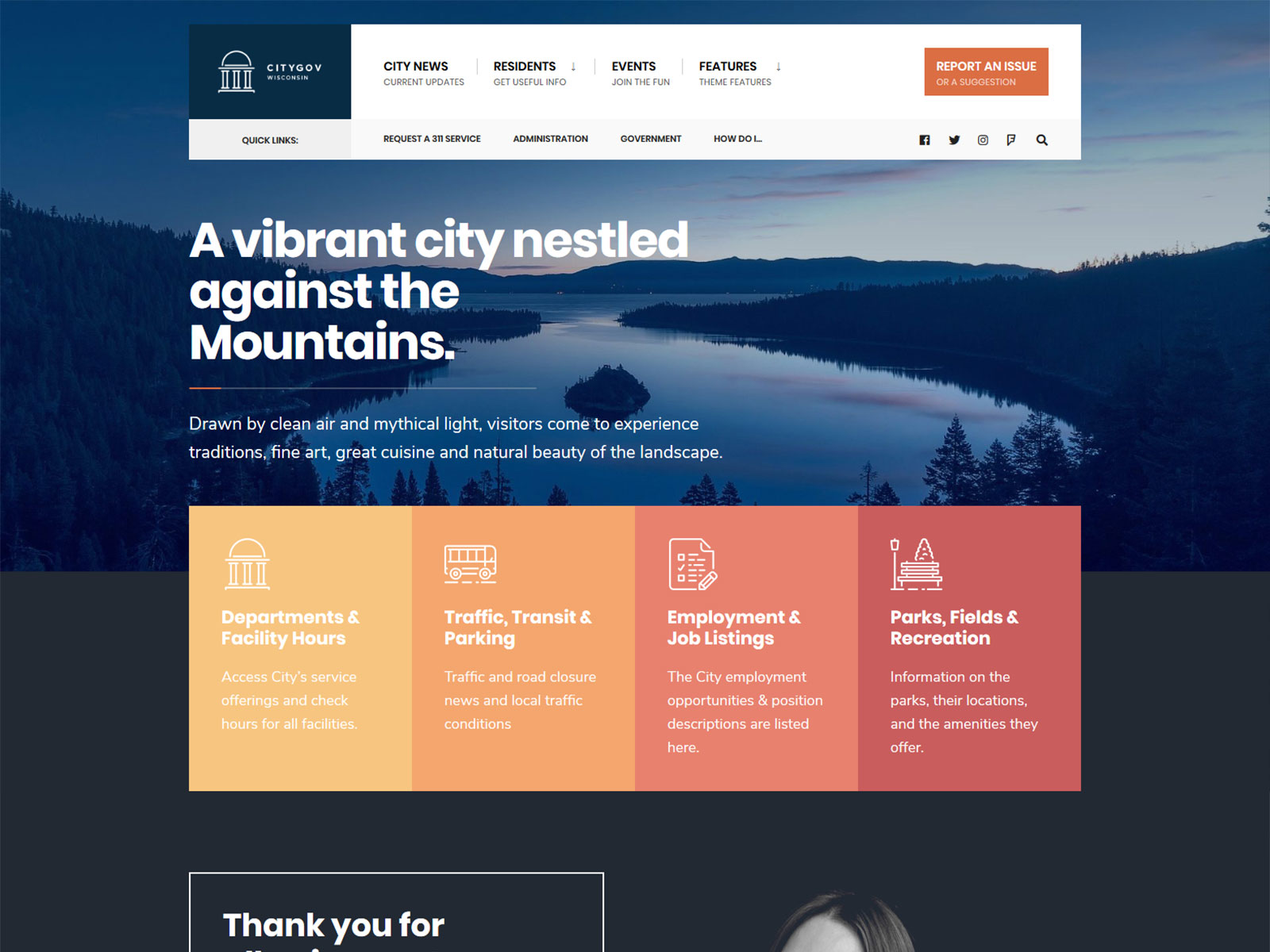
CityGov was built with accessibility as a structural requirement from the start, including skip links, visible focus states, keyboard navigation, semantic heading structure, and WCAG AA contrast ratios in the default palette.
Dannci builds and sells WordPress themes at Themnific, including CityGov, a theme built and audited specifically for accessibility-conscious site owners (government, nonprofit, and public-sector clients). This article is based on what actually gets checked, flagged, and fixed during that process, not a summary of WCAG documentation.
Last modified: